Image to Video
AI Generator
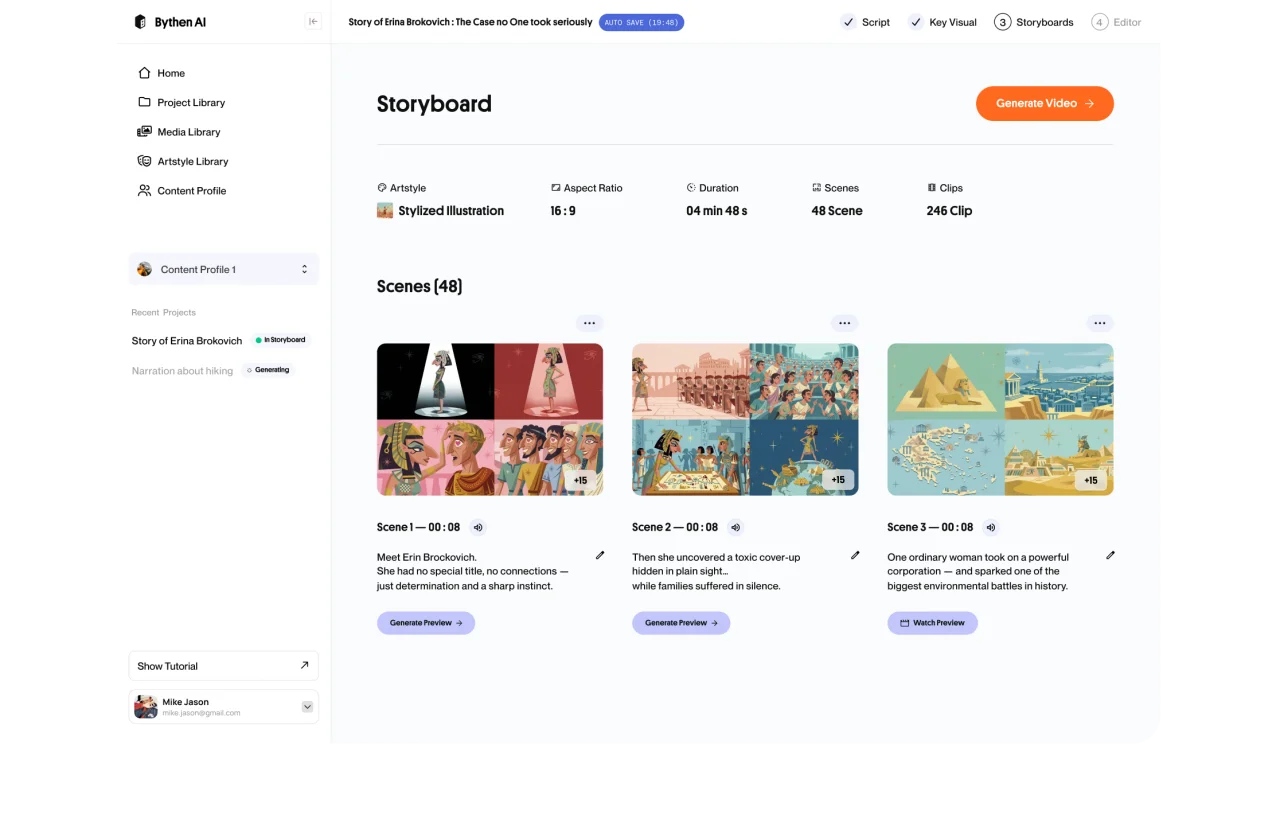
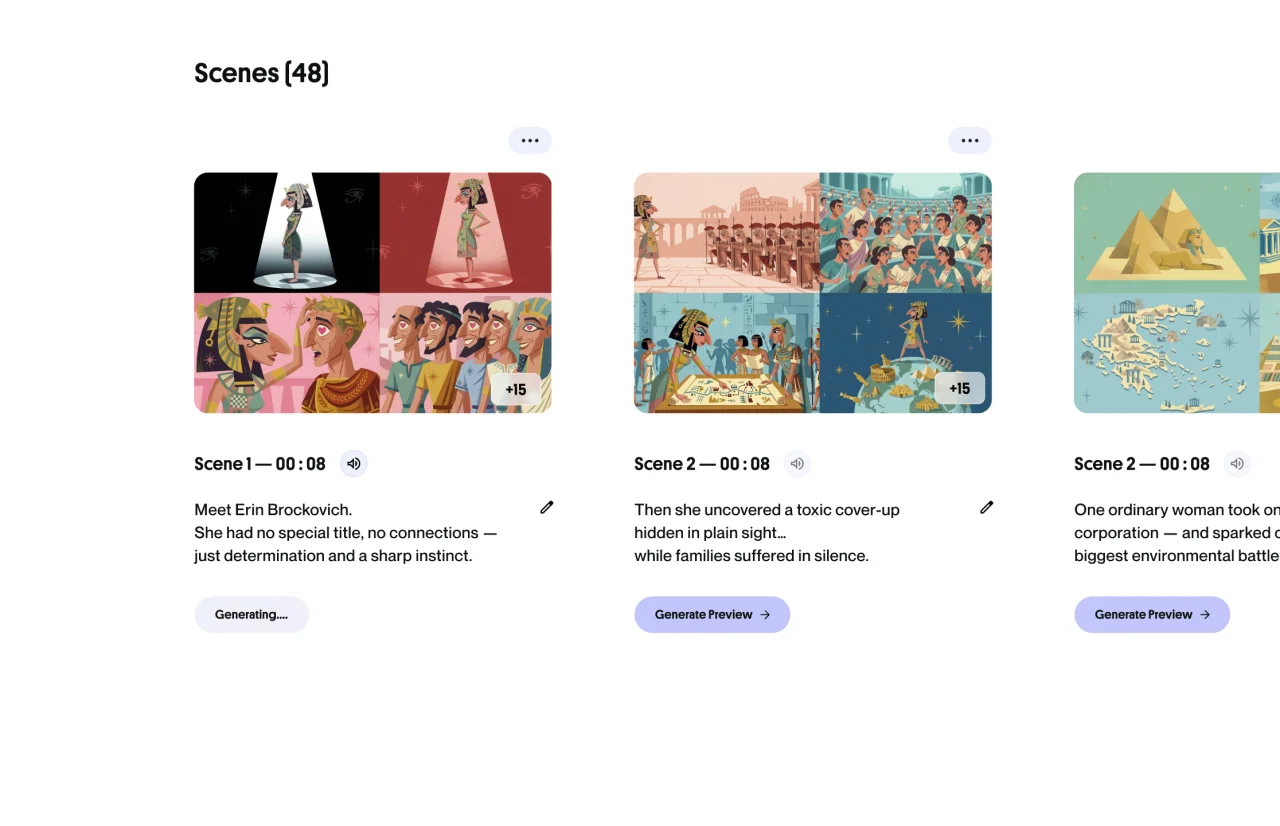
At the Storyboard stage, upload your own images into any scene. ByThen's AI video models animate them into cinematic motion, keeping your visual style consistent throughout.
Your images, ByThen's motion, one coherent video
Upload at Storyboard Stage
At the Storyboard step, replace any AI-generated scene visual with your own image. Your photo becomes the source frame for video generation.
Animated by 7 AI Video Models
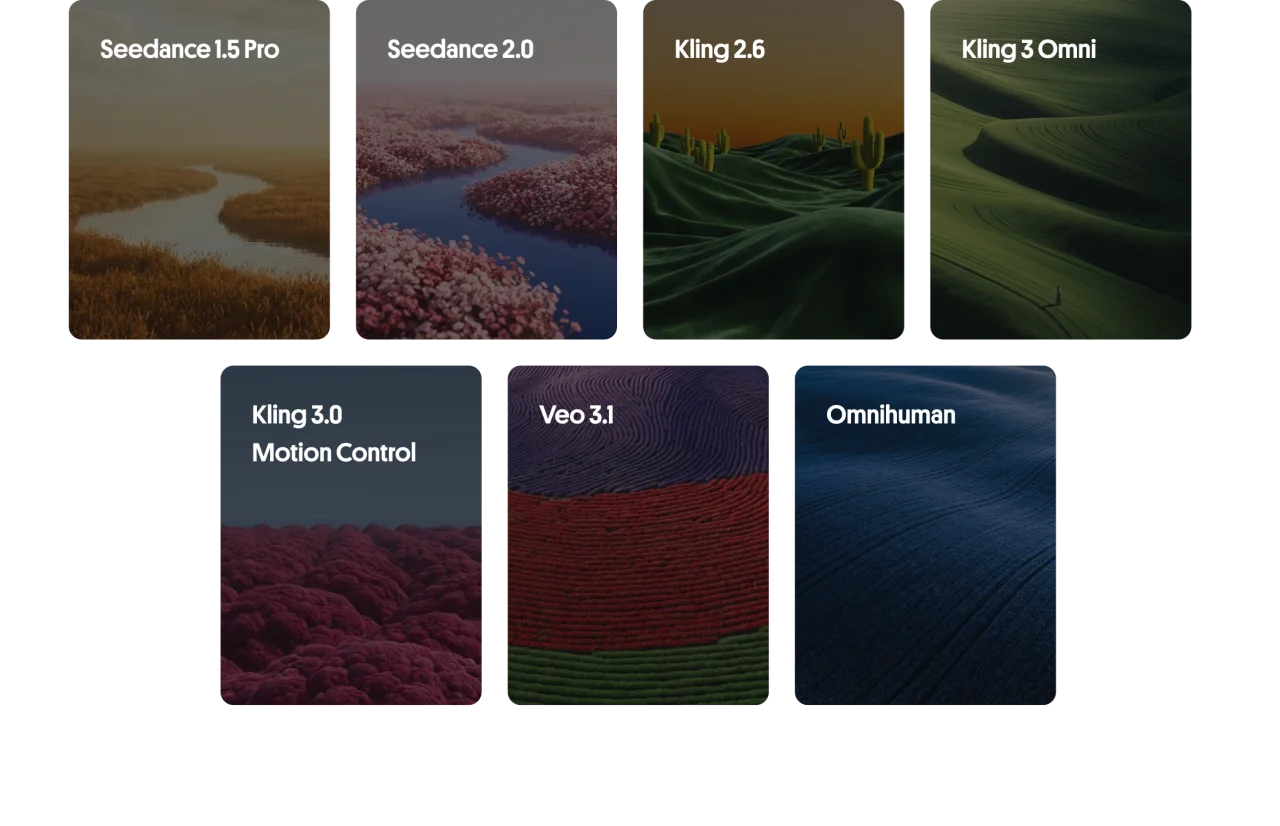
ByThen runs your image through Seedance, Kling, and Veo, selecting the right model to produce coherent, high-quality motion without wasted spend.
Style Stays Consistent
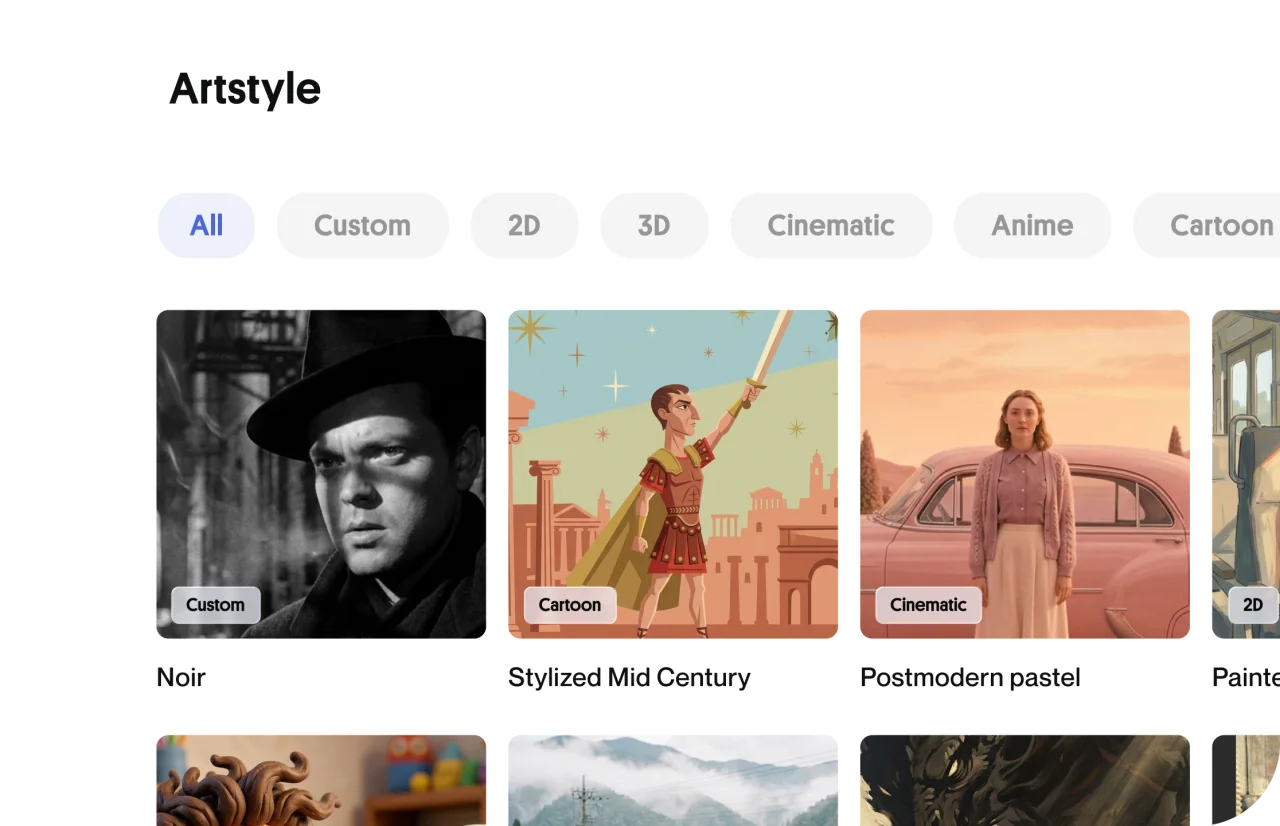
Convert image to video within your project's defined art style and color palette.
Regenerate Any Scene
Not happy with how a frame animated? Regenerate that scene individually. The rest of your storyboard stays untouched.
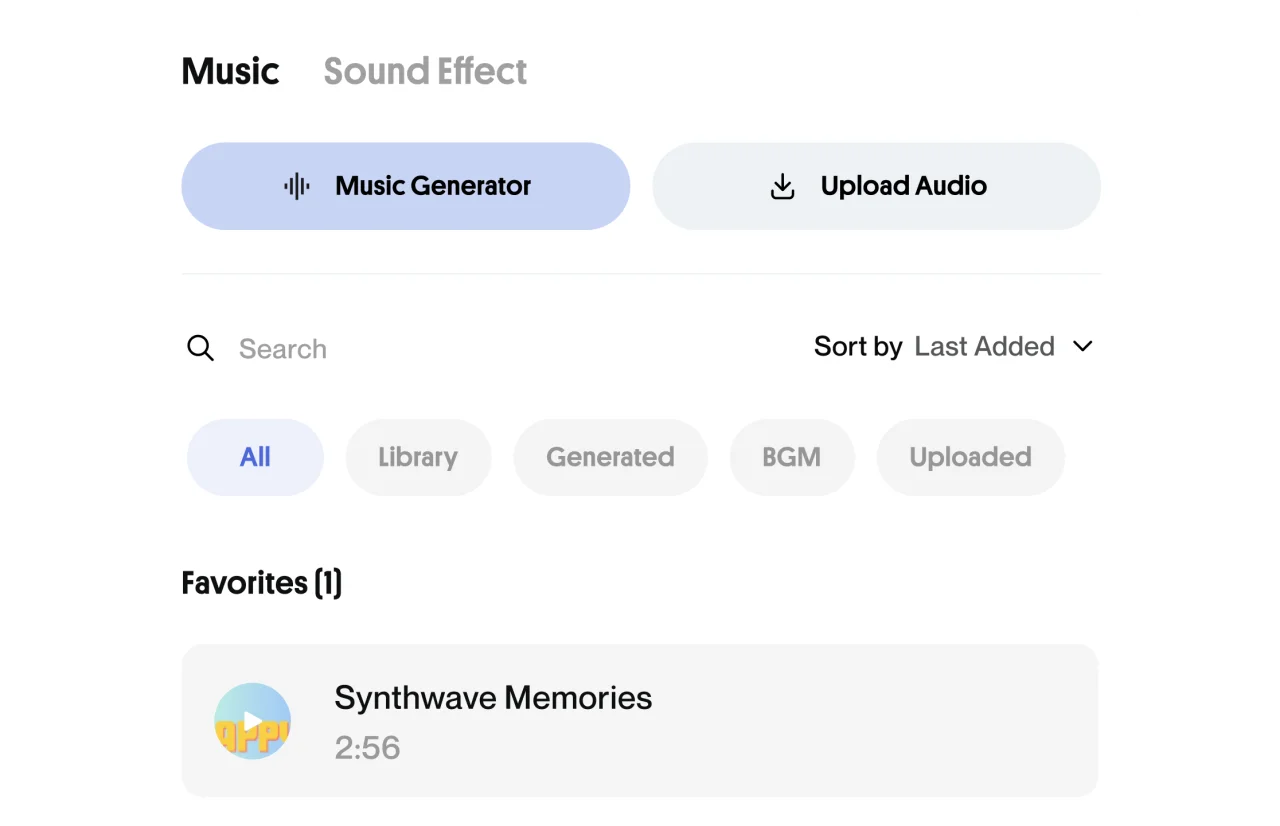
Auto-Scored Audio
Background music and SFX are generated to match the mood of your imagery.
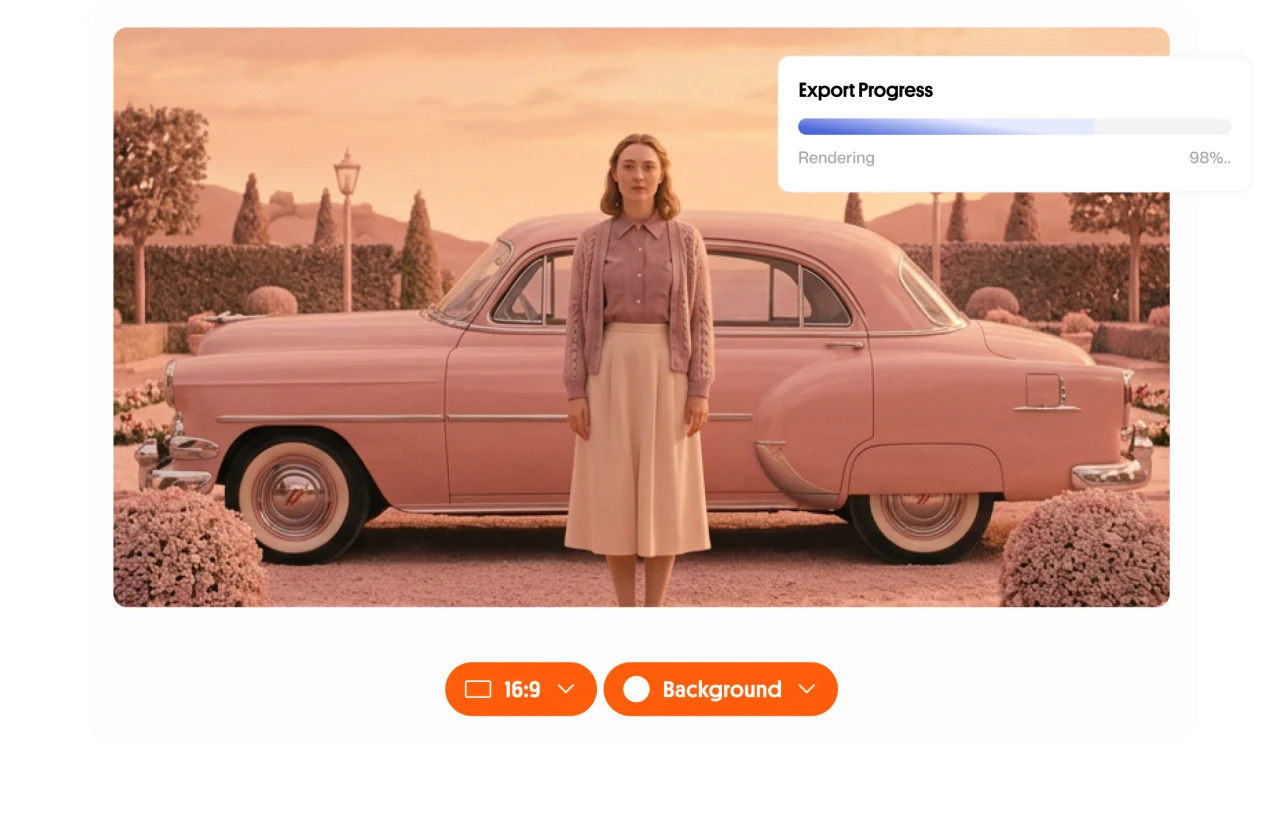
MP4, Ready to Publish
Export in 16:9, 9:16, or 1:1 ratio. Download and upload to any platform manually.
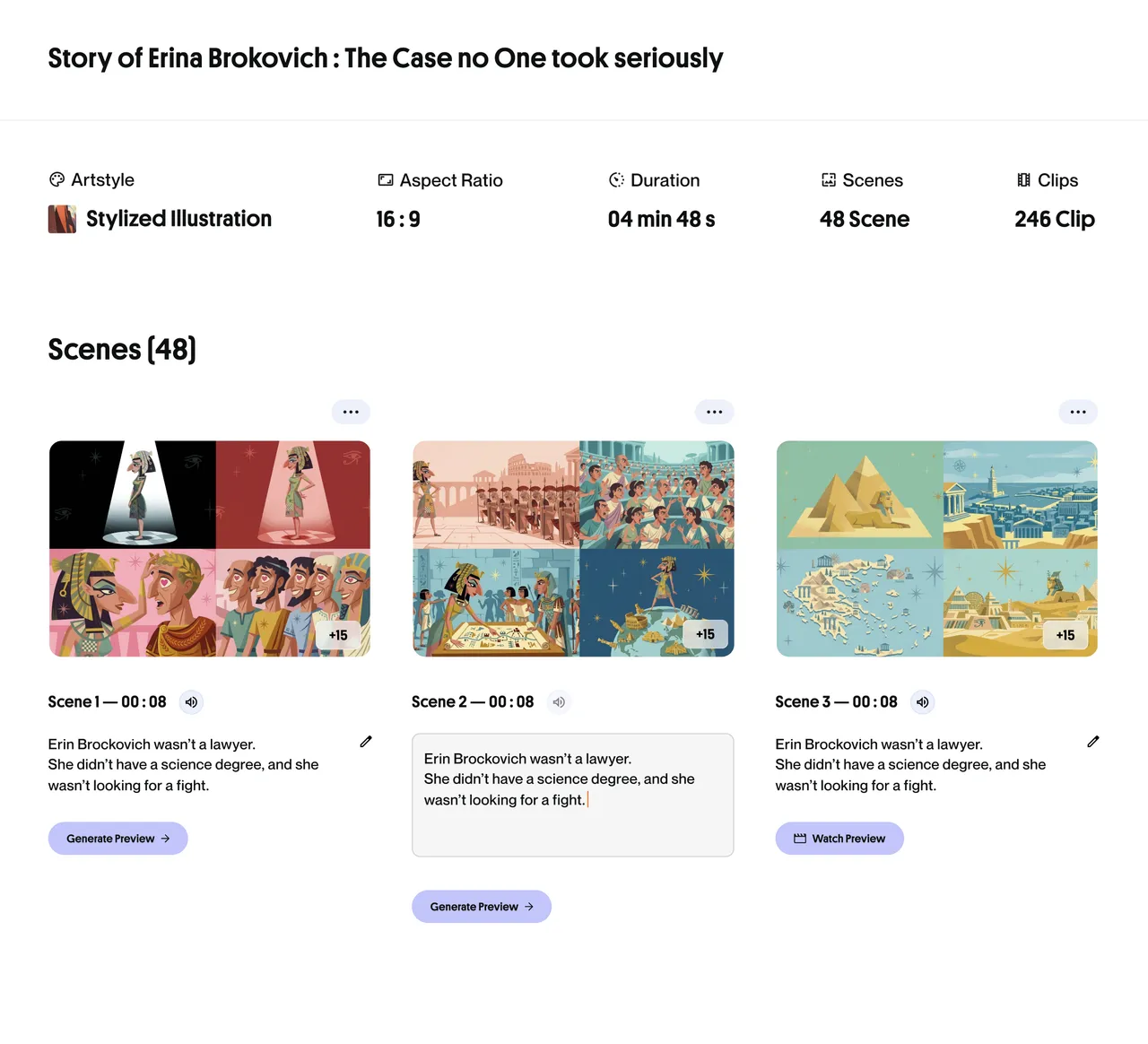
Mix your images
with AI-generated scenes
At the Storyboard stage, swap any scene's AI visual for your own image. ByThen's video models animate it into motion, while keeping it visually consistent with every other scene in your video.
"The grind of sourcing B-roll, timing cuts, and syncing audio, that whole layer just disappeared."
Creator using ByThen for documentary content
Powered by 7 AI video models
Seedance 1.5 Pro
High consistency
Seedance 2.0
Latest generation
Kling 2.6
Fluid motion

Kling 3 Omni
Versatile
Kling 3.0 Motion Control
Precise movement
Veo 3.1
Cinematic quality
Omnihuman
Human animation
Create for any topics and needs
Bythen empower you to tell stories that are uniquely yours
Documentary Storytelling
Research-backed storytelling with unique image, video, text and sound. No stock footage recycling.
Educational Explainers
Turn complex topics into engaging visual and graphics that keeps viewers watching.
Finance, Business & News
Company deep-dives and current events recap. Produce faster for the topics that move daily.
Motivation & Self-Improvement
Breathe life to your quotes and words with ambient visual, video and audio.
Product Showcases & Portfolio Reels
Animate product photography into dynamic video ads without a studio.
Science & Technology
Visualize processes and data with engaging image to video AI generator.
How ByThen works
- 01
Setup your content profile:
Define your topic, style, language and voice
- 02
Create your script:
Get AI to help you, or upload yours
- 03
Preview and approve:
Review or regenerate key assets
- 04
Touch up your storyboard:
Edit your storyboard to achieve the desired output
- 05
Generate your video:
Full-length video generated and assembled automatically
- 06
Edit, export, publish:
Refine on timeline and download your finished video
ByThen AI Image to Video FAQs
What is the Image to Video feature?
What image formats are supported?
Where do I upload my image for reference?
Can I use images at any point during editing, not just at the start?
What if the generated clip doesn't look right?
Will my visual look consistent in the rest of the video?
Can I use an image as a start or end frame for the animation?
Does the video output match the look of my uploaded image?